Parent: Dataflows Gen2
How do you optimize dataflows gen2 performance?
There are three features in Power Query that you need to get good at in order to become a good analytics engineer:
- Query folding
- Preview-only steps
- Fast copy
What is Query Folding?
Query folding is a feature of Power Query pushes the transformation step back into the source system by converting it into native SQL query. This is more efficient because:
- Source systems are usually more optimized for queries and has more compute
- Minimizes the ammount of data that goes through the network
- Minimizes the amount of processing Power Query has to do, which speeds up refresh times. Power Query does query folding automatically on compatible transformations. You should be constantly be checking if the Query Folding breaks in order to make adjustments for it.
Optimizing for query folding is critical for efficient Power Query usage, as it can cut down refresh time from hours to minutes.
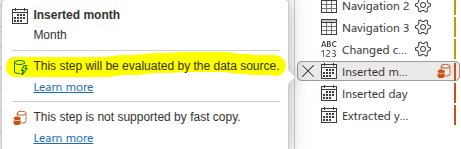 You can check whether or not the transformation step is foldable by hovering over the step itself, a green database logo with a lightnigh on it shows that the query is foldable up to that step.
Folding-friendly patterns
Transformations that typically fold:
- Filter rows (WHERE clauses)
- Select or remove columns (SELECT specific columns)
- Sort rows (ORDER BY)
- Group by and aggregate (GROUP BY with SUM, COUNT, and similar functions)
- Merge queries from the same source (JOIN)
- Change data types (CAST)
- Rename columns (AS aliases)
Transformations that typically break folding:
- Add custom columns with complex M expressions
- Pivot and unpivot operations
- Merge queries from different data sources
- Operations using
Table.Bufferforce evaluation - Some text transformations with M-specific functions
What is Preview-Only step?
It is a step that only operates in the “transform” page of Power Query, this step doesn’t get evaluated during production runs.
At Astra International we worked with tables with hundreds and thousands of rows, pulling all that data into Power Query slows the design process to a crawl. Before this feature was implemented we used Parameters to filter the data in the “source query” before removing that filter when deploying the dataset to production.
Now Power Query has the the Preview-only feature where you can do that much more easily.
When working with huge datasets add a preview-only step to filter the data into a more manageable size, make your transformations, and then deploy it. The deployed dataset will contain all the production data.
What is Fast Copy
Power Query Best Practices
- Filter early. Apply row filters as the first steps in your query. Reducing the number of rows early means every subsequent transformation processes less data.
- Select columns early. Remove columns you don’t need as soon as possible. Fewer columns mean less data to process and transfer.
- Disable unnecessary loads. If a query only serves as a staging or reference query (for example, a lookup table used in a merge), right-click the query in the Queries pane and deselect Enable load. This feature prevents the staging query from loading to the destination, reducing processing time.
- Use staging dataflows. For complex scenarios, separate extraction from transformation. Create one dataflow that extracts and stages raw data in a lakehouse. Create a second dataflow that reads from the staging lakehouse and applies transformations. This pattern offers several benefits:
- The extraction logic is independent and can refresh on its own schedule.
- Multiple transformation dataflows can reuse the same staged data.
- If a transformation fails, the raw data is still available for reprocessing.
- Parameterize for reuse. Dataflow Gen2 supports two approaches for environment parameterization. Public parameters are available in standard Dataflow Gen2 and let you define reusable inputs (such as filter values or destination names) that can be overridden at runtime through a pipeline. Fabric Variable Libraries provide centralized, workspace-level configuration values that are referenced directly in the dataflow script. Fabric Variable Libraries require Dataflow Gen2 with CI/CD, a variant you enable at creation by selecting the Git integration option. Both approaches reduce configuration drift when promoting solutions across CI/CD environments.
- Monitor refresh performance. Use the Monitoring Hub in Fabric and the refresh history on the dataflow to track how long your dataflows take to refresh. Look for trends that indicate growing datasets or inefficient transformations. Email alerts notify you when scheduled refreshes fail, so you can respond quickly and fix issues before they impact downstream consumers.